I was installing SharePoint 2010 – wait, what about the pre-requisites?
- SQL 2005 SP3 with Cumulative update package 3
- OR SQL 2008 SP1 with Cumulative update package 2
So what version have we got? Here’s the tip of the day (for me and to you to share), run this SQL Query to find out:
SELECT serverproperty('productversion'),
serverproperty('productlevel'),
serverproperty('edition')
This should give you information to determine the version number, the release level (RTM or Service Pack), and the edition (Express, Standard or Enterprise).
For convenience, I’ve added the version numbers required for SharePoint 2010:
- SQL 2005 SP3 - 2005.90.4035
- SQL 2008 SP1 – 2007.100.2531.0
For more version numbers go to http://support.microsoft.com/kb/321185.
Referenced from this Microsoft KB http://support.microsoft.com/kb/321185
Showing posts with label Configuration. Show all posts
Showing posts with label Configuration. Show all posts
Wednesday, June 09, 2010
SQL Versions – Tip of the day


Thursday, October 09, 2008
Microsoft Office SharePoint Server 2007 - My Sites and "Portal Site Connections" to change breadcrum behaviour
Summary
My Sites have proved to be a true value-add to any organisation as it does improve social personal information sharing (and alot more). It is easy to setup and logical to use.
There are however still several glitches when it is first setup in an environment. For instance, many users have found that once they navigate to their MySite, there is no link in the breadcrum back to the main Intranet Portal (as illustrated below):
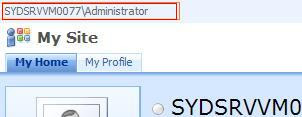
Luckily, there's a setting called "Portal site connections", once this setting is set, you would have modified the behaviour of your My Site breadcrums (as illustrated below):

Making the configuration change
Assuming we want to make this change to all My Sites under the current "My Site Host", we will need to perform the following steps:
1. Login to My Sites as the My Site Host owner (in my case this user is administrator)
2. Browse to the "My Profile" tab
3. Click "Site Actions"
4. Select "Site Settings" from the Site Actions menu (or http://mysiteurl/_layouts/settings.aspx)
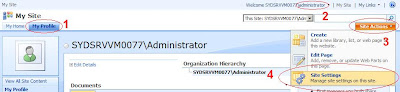
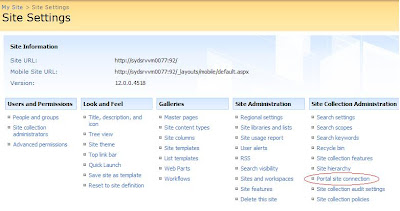
5. Click "Portal site connection" under Site Collection Administration
6. Select Connect to portal site and fill in a URL and link name (example illustrated below):
7. Click "OK"

Notes: When you now go back to the "My Profile" tab, you will see the change immediately. This change will only be valid for any new "My Sites" that are created (Not the MySite host or My Profile tab. Yes, personal sites aka the "My Home" tab) . For "My Home" tabs in existing "My Sites", you can either recreate the My Site, or make the same configuration via the following instructions:
1. Login to My Sites as the My Site Host owner (in my case this user is administrator)
2. Browse to the "My Home" tab
3. And follow from point 3 in the instructions above
My Sites have proved to be a true value-add to any organisation as it does improve social personal information sharing (and alot more). It is easy to setup and logical to use.
There are however still several glitches when it is first setup in an environment. For instance, many users have found that once they navigate to their MySite, there is no link in the breadcrum back to the main Intranet Portal (as illustrated below):

Luckily, there's a setting called "Portal site connections", once this setting is set, you would have modified the behaviour of your My Site breadcrums (as illustrated below):

Making the configuration change
Assuming we want to make this change to all My Sites under the current "My Site Host", we will need to perform the following steps:
1. Login to My Sites as the My Site Host owner (in my case this user is administrator)
2. Browse to the "My Profile" tab
3. Click "Site Actions"
4. Select "Site Settings" from the Site Actions menu (or http://mysiteurl/_layouts/settings.aspx)

5. Click "Portal site connection" under Site Collection Administration

6. Select Connect to portal site and fill in a URL and link name (example illustrated below):
7. Click "OK"

Notes: When you now go back to the "My Profile" tab, you will see the change immediately. This change will only be valid for any new "My Sites" that are created (Not the MySite host or My Profile tab. Yes, personal sites aka the "My Home" tab) . For "My Home" tabs in existing "My Sites", you can either recreate the My Site, or make the same configuration via the following instructions:
1. Login to My Sites as the My Site Host owner (in my case this user is administrator)
2. Browse to the "My Home" tab
3. And follow from point 3 in the instructions above
Thursday, July 17, 2008
Microsoft SharePoint 2007 - Changing service accounts and service account passwords in SharePoint
I was trying to change passwords for my VPC and I stumbled across these very nice articles.
This Microsoft KB talks about changing the service account/service account password for WSSv3 and MOSS2007:
http://support.microsoft.com/kb/934838
Joel Oleson's article talks about some additional tips including updating Search Service credentials:
http://blogs.msdn.com/joelo/archive/2006/08/22/712945.aspx
This Microsoft KB talks about changing the service account/service account password for WSSv3 and MOSS2007:
http://support.microsoft.com/kb/934838
Joel Oleson's article talks about some additional tips including updating Search Service credentials:
http://blogs.msdn.com/joelo/archive/2006/08/22/712945.aspx
Tuesday, July 15, 2008
Microsoft SharePoint 2007 - Including/Excluding a list in the Search Index
Have the search results in your WSS/MOSS environment been ugly with all that list data? Did you want the content source to include content excluding list data?
In SharePoint, the content in each list can be configured to be included or excluded from being indexed in search crawls.
Through the SharePoint UI, this option is called "Allow items from this list to appear in search results?" and is located in the Advanced List Settings:


Through the SharePoint API, this option is exposed as a property called "NoCrawl" (for the list named "Hidden From Search List"):
SPSite site = new SPSite("http://siteurl");
SPWeb web = site.RootWeb;
SPList list = web.Lists["Hidden From Search List"];
list.NoCrawl = false;
list.Update();
After this property has been updated, the next time SharePoint Search crawls, it would skip indexing the list with a NoCrawl value of false.
In SharePoint, the content in each list can be configured to be included or excluded from being indexed in search crawls.
Through the SharePoint UI, this option is called "Allow items from this list to appear in search results?" and is located in the Advanced List Settings:


Through the SharePoint API, this option is exposed as a property called "NoCrawl" (for the list named "Hidden From Search List"):
SPSite site = new SPSite("http://siteurl");
SPWeb web = site.RootWeb;
SPList list = web.Lists["Hidden From Search List"];
list.NoCrawl = false;
list.Update();
After this property has been updated, the next time SharePoint Search crawls, it would skip indexing the list with a NoCrawl value of false.
Sunday, June 29, 2008
Microsoft Windows SharePoint Services 3.0 - Saving a Site as a Site Template
There's a page in SharePoint that allows you to save a Site directly as a Site Template to the Site Templates Gallery. The URL is http://(sharepoint site)/_layouts/savetmpl.aspx
Apparently, there is no link in the settings page to this url in SharePoint.
With this, you can customise a site, and then save it as a template for future use. This serves as an alternative to using the stsadm backup and restore command.
Here's a screenshot of what the page looks like.

Apparently, there is no link in the settings page to this url in SharePoint.
With this, you can customise a site, and then save it as a template for future use. This serves as an alternative to using the stsadm backup and restore command.
Here's a screenshot of what the page looks like.

Subscribe to:
Posts (Atom)